Connecting MCP clients
Kandra ships a dynamic, meta-tools MCP (Model Context Protocol) server — one server that discovers every Document/Dictionary/Report/Data Processor/Constant/Enum in your configuration at runtime, instead of shipping one hand-written tool per entity type. Point an AI desktop client at it and the assistant can list what entities exist, describe their fields, query, create, update, submit, delete and run reports — under a real user's identity and permissions, exactly as if that user had signed in.
This page covers connecting three clients: Claude Code, VS Code / GitHub Copilot Chat, and Codex. Every example below is a real, verified config — not a guessed shape.
Prerequisites
- Your Kandra host running, with the MCP endpoint mapped (
AddKandraMcp<>()+app.MapKandraMcp()inProgram.cs— see the engine's own setup if you're wiring this into a fresh configuration; it ships out of the box in this template). - An API key. The MCP endpoint accepts API-key authentication only — a JWT (a signed-in human
session) is rejected with
403 Forbidden, on purpose, so an MCP client is always a distinctly-identifiable non-human caller. Create one for yourself from My profile → API keys (or, for another user, from their user edit page) — see Identity & auth for the full mechanism (its "API keys" section). The plaintext key (kdr_...) is shown once, at creation — copy it before closing the dialog.
Use the plain HTTP port in every example below (http://localhost:5219/mcp for the default dev launch
profile), not the HTTPS one. The dev HTTPS listener uses a self-signed certificate most MCP clients won't
trust, and you'll get an opaque TLS handshake failure instead of a clear error. Use a real certificate before
pointing a client at HTTPS in anything other than local dev.
Claude Code
claude mcp add --transport http kandra http://localhost:5219/mcp --header "X-Api-Key: kdr_..." -s local
--transport http— the MCP server is a stateless HTTP endpoint, not stdio.--header "X-Api-Key: kdr_..."— the same header every other Kandra API-key call uses.-s local/-s user— scope the registration so the key never lands in a committed.mcp.json.-s local(the default) stores it in your own per-project settings, outside version control;-s userstores it once for every project on your machine. Only use the project-shared scope (-s project, which does write.mcp.jsoninto the repo) for something that genuinely has no secret in it — never for this.
Run claude mcp list to confirm it registered, then ask Claude something that needs a live entity (e.g. "what
Dictionaries exist in this configuration?").
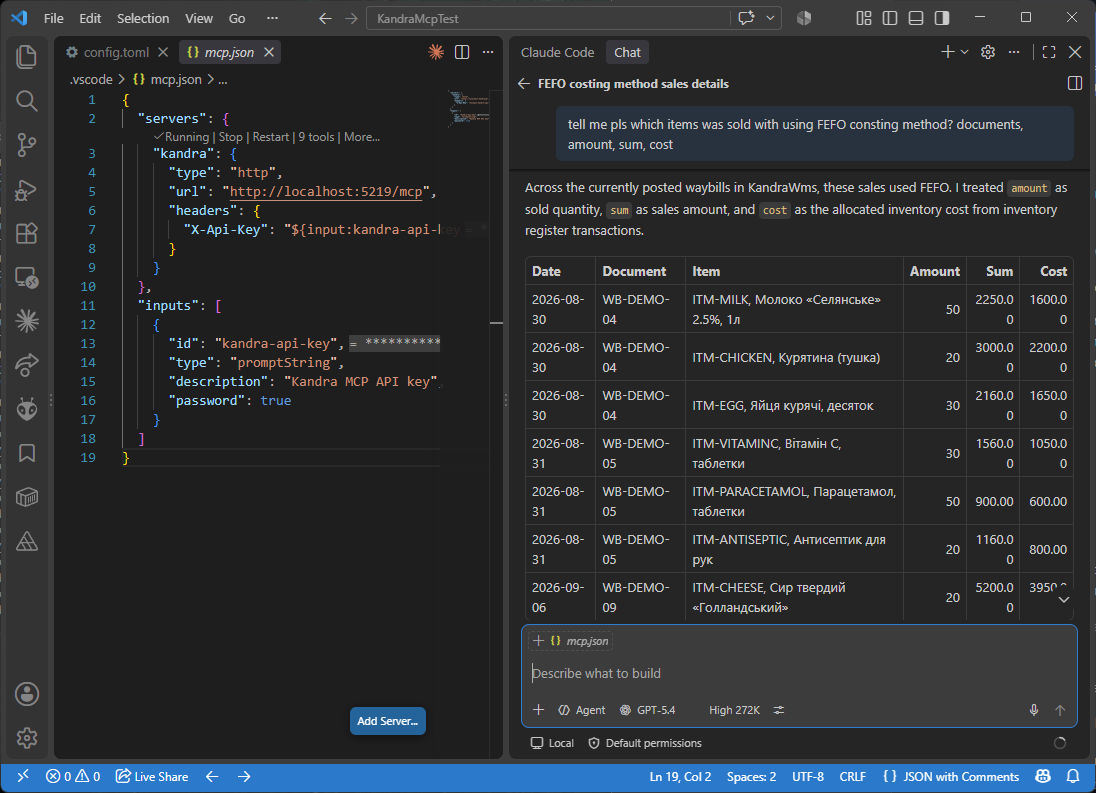
VS Code / GitHub Copilot Chat
VS Code's native MCP support (used by both Copilot Chat's agent mode and other MCP-aware chat extensions)
reads .vscode/mcp.json. Use the inputs/${input:...} mechanism so the key is prompted for interactively
and kept in VS Code's own secret storage, never written into the file itself:
{
  "servers": {
    "kandra": {
      "type": "http",
      "url": "http://localhost:5219/mcp",
      "headers": {
        "X-Api-Key": "${input:kandra-api-key}"
      }
    }
  },
  "inputs": [
    {
      "id": "kandra-api-key",
      "type": "promptString",
      "description": "Kandra MCP API key",
      "password": true
    }
  ]
}
The first time the server starts, VS Code prompts for the key (masked, since "password": true) and reuses it
for the session without ever writing it to .vscode/mcp.json — safe to commit the file as-is.
Codex
Codex reads its MCP server list from config.toml — either a project-local .codex/config.toml, or
~/.codex/config.toml to make the server available in every project. The one gotcha worth calling out
explicitly, since it differs from both clients above: Codex's env_http_headers maps a header name to an
environment variable name, not a literal header value — Codex reads the actual key from your shell
environment at launch, so it never touches the config file either.
[mcp_servers.kandra]
url = "http://localhost:5219/mcp"

[mcp_servers.kandra.env_http_headers]
X-Api-Key = "KANDRA_API_KEY"
Export the key before starting Codex (export KANDRA_API_KEY=kdr_... on macOS/Linux, $env:KANDRA_API_KEY = "kdr_..." in PowerShell) — Codex substitutes it into the X-Api-Key header on every MCP call.
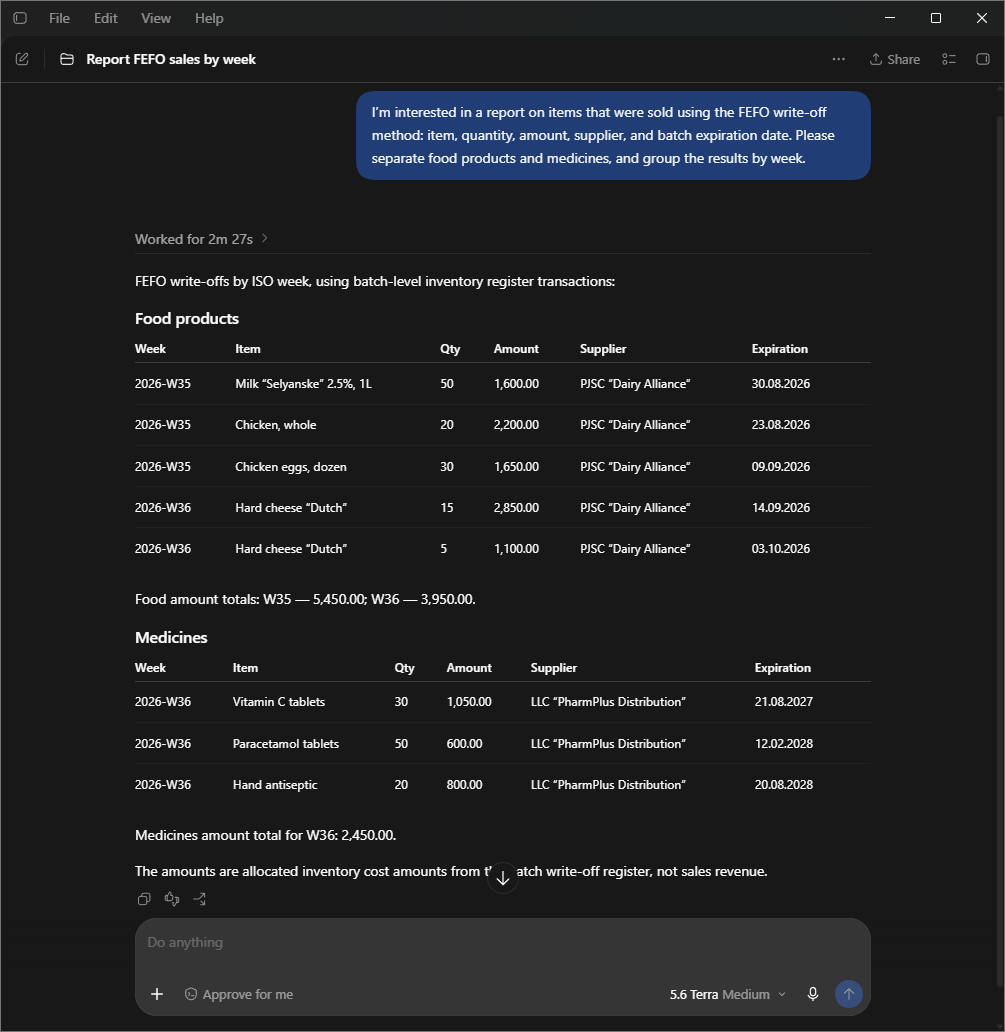
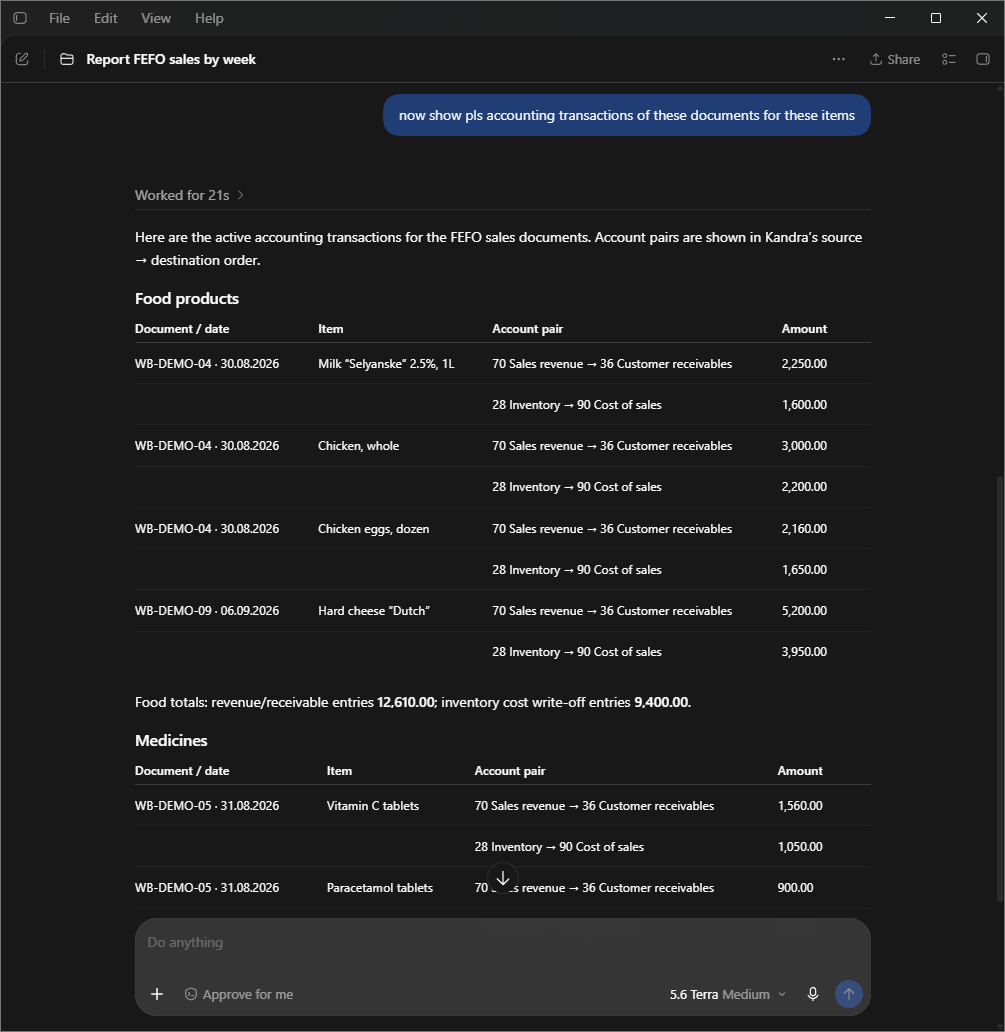
A real session, asking for a report and then a follow-up that needs the same context:
See also
- Identity & auth — how a key is created, owned, cached and revoked.
- Attributes overview —
[Description], what an AI client actually reads about your entities. - Chart of accounts — the structure behind the
get_chart_of_accountstool. - Overall architecture